How to Create a DIY Home Security System with Wyze Sensors and Cameras
By Wyzeussale | Published: 2026-06-12
Category: How-to Guides
Learn how to build a cost-effective DIY home security system using Wyze sensors and cameras. Step-by-step setup, integration tips, and product recommendations.
Home security doesn't have to be expensive or complicated. With the rise of smart home technology, you can create a robust, DIY security system that rivals professional setups—at a fraction of the cost. Wyze offers a range of affordable, high-quality devices that work seamlessly together to protect your home. In this guide, we'll walk you through how to build a complete DIY home security system using Wyze sensors and cameras, from planning to installation.
Why Choose Wyze for Your DIY Security System?
Wyze has earned a reputation for delivering feature-rich smart home products at budget-friendly prices. Whether you're a renter or a homeowner, you can customize a system that fits your specific needs. Wyze devices are easy to set up, compatible with each other, and integrate with voice assistants like Alexa and Google Assistant. Plus, with no long-term contracts or monthly fees, you're in full control of your security costs.
Step 1: Plan Your Security Coverage
Before buying any devices, walk through your home and identify vulnerable entry points. Common areas include:
- Front and back doors
- Ground-floor windows
- Garage doors
- Sliding glass doors
- High-traffic hallways
Think about where you want cameras and sensors. For example, you might want a camera at the front door, a motion sensor in the living room, and door/window sensors on all entry points. Wyze offers versatile devices that can be placed indoors or outdoors (with appropriate weatherproofing).
Step 2: Choose Your Wyze Security Devices
Wyze Cameras for Video Monitoring
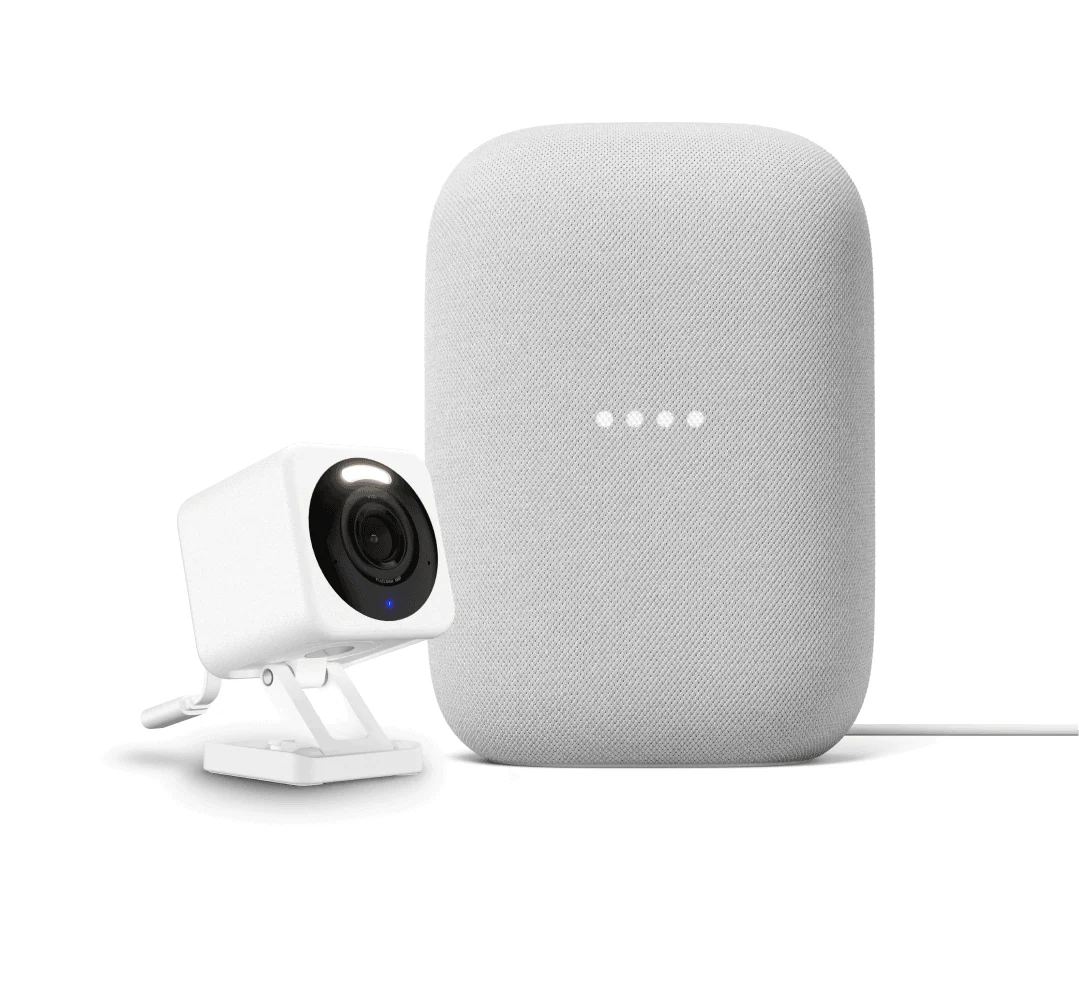
Wyze cameras are the eyes of your system. The Wyze Video Doorbell Pro is perfect for monitoring your front door. It offers 2K resolution, a wide field of view, and two-way audio, so you can see and talk to visitors. For other areas, you can add indoor or outdoor cameras, such as the Wyze Cam v3 or the Wyze Cam Pan, both of which support motion detection, night vision, and cloud recording.
Wyze Sensors for Intrusion Detection
Sensors are the backbone of any security system. The Wyze Sense Climate Sensor not only monitors temperature and humidity but can also detect motion and open/close status. Pair it with Wyze Contact Sensors and Motion Sensors to get instant alerts when a door or window is opened or when motion is detected in restricted areas. These sensors are tiny, adhesive-backed, and easy to install without wiring.
Step 3: Set Up Your Wyze Base Station (If Needed)
Most Wyze devices connect directly to your Wi-Fi network, so you don't always need a hub. However, if you plan to use Wyze Sense sensors (which require the Wyze Sense Hub), you'll need to plug it into your router. The hub acts as a bridge between the sensors and your home network, extending range and reliability. Set up is simple: download the Wyze app, create an account, and follow the in-app instructions to pair devices.
Step 4: Install Cameras and Sensors
Camera Placement Tips
- Mount the doorbell camera at eye level, ideally 48-50 inches from the ground, for the best view of visitors and packages.
- Position indoor cameras in corners or on shelves to cover wide areas. Avoid pointing them at windows or bright lights to prevent glare.
- For outdoor cameras, use the Wyze Cam Floodlight Plug-In Mount to add integrated floodlighting and deter intruders.
Sensor Placement Tips
- Place contact sensors on door and window frames—stick one part on the frame and the other on the moving part.
- Put motion sensors in corners or on walls, about 6-8 feet high, angled toward the area you want to monitor.
- If you're using the Wyze Sense Climate Sensor, place it in a central location to monitor overall indoor climate, but also near potential leak areas (like under sinks) for added protection.
Step 5: Configure Notifications and Automations
Once devices are installed, open the Wyze app to customize settings. Set up rules like:
- Motion Detection Alerts: Receive push notifications when your camera detects motion.
- Sensor Alerts: Get notified when a door or window opens unexpectedly.
- Automations: For example, have your indoor lights turn on when a motion sensor is triggered at night. You can also integrate Wyze plugs or bulbs for this purpose.
- Recording Schedules: Choose continuous recording or event-triggered clips. Wyze cameras support cloud storage (free with limited clips) and local storage via microSD card.
Don't forget to enable geofencing—your system can automatically arm itself when you leave and disarm when you return.
Step 6: Test Your System
After setup, test each component. Walk past sensors, open doors, and trigger cameras to ensure notifications arrive promptly. Adjust sensitivity settings if you get too many false alarms (e.g., from pets). Wyze devices allow you to adjust motion detection zones and sensitivity to minimize false triggers.
Enhancing Your System with Accessories
To take your DIY security system further, consider adding these accessories:
- Wyze Battery Charging Dock: Keep your camera batteries charged and ready. The Wyze Battery Charging Dock charges multiple batteries simultaneously, so you never have downtime.
- Wyze Surge Protector: Protect your hub and cameras from power surges. The Wyze Surge Protector has multiple outlets and USB ports, perfect for a central security station.
- Wyze Cordless Vacuum: While not security-related, keeping your home clean reduces clutter that could set off sensors. The Wyze Cordless Vacuum - Charger ensures your vacuum is always ready to go.
Common Mistakes to Avoid
- Poor Wi-Fi coverage: Ensure your router is centrally located and consider a mesh network if devices are far apart.
- Ignoring sensor placement: Don't place sensors behind furniture or curtains where they can't detect movement.
- Forgetting firmware updates: Regularly check the Wyze app for updates to ensure your devices have the latest features and security patches.
- Over-relying on cloud storage: Use a microSD card for local backup in case of internet outages.
Frequently Asked Questions
Can I use Wyze sensors without a hub?
Some Wyze sensors (like the Wyze Sense) require the Wyze Sense Hub. However, newer models like the Wyze Floodlight Sensor or Wyze Cam v3 can detect motion directly. Check device specifications before buying.
Do I need a subscription for Wyze security features?
No, Wyze devices work without a subscription. You get free cloud storage for 14 days of event-triggered clips. However, for continuous recording, extended cloud storage, or advanced AI detection (e.g., person/vehicle/package detection), you may want to consider Wyze Cam Plus (starting at $1.99/month per camera).
How do I integrate Wyze with other smart home systems?
Wyze supports Alexa and Google Assistant for voice control. You can also use IFTTT for advanced automations, like turning on a smart light when a sensor triggers.
Conclusion
Building a DIY home security system with Wyze is not only affordable but also highly customizable. By strategically placing cameras and sensors, configuring smart notifications, and adding the right accessories, you can create a system that gives you peace of mind—without locking you into a contract. Start with a Wyze Video Doorbell Pro and a couple of Wyze Sense Climate Sensors, and expand as needed. Your home, your rules, your security.
Ready to build your own security system? Explore the full range of Wyze products at Wyzeussale and take the first step toward a smarter, safer home today.