How to Extend the Range of Your Wyze Wi-Fi 6 Mesh Router for Whole-Home Coverage
By Wyzeussale | Published: 2026-06-07
Category: How-to Guides
Learn how to optimize your Wyze Wi-Fi 6 Mesh Router placement and use accessories to eliminate dead zones. This guide covers router optimization tips and recommended products for whole-home Wi-Fi.
Dead Wi-Fi zones in your home can be frustrating, especially when they disrupt streaming, gaming, or smart home device performance. If you own a Wyze Wi-Fi 6 Mesh Router, you already have a solid foundation for fast, reliable coverage. But even the best mesh systems need strategic placement and sometimes a little extra hardware to deliver whole-home connectivity. In this guide, we’ll walk you through practical steps to extend your Wi-Fi range, from router placement tips to leveraging complementary Wyze products that boost signal strength and protect your network.
Understanding Your Wyze Wi-Fi 6 Mesh Router’s Range
Wyze Wi-Fi 6 Mesh Routers are designed to cover up to 4,500 square feet with a three-pack system, using the latest Wi-Fi 6 technology for faster speeds and better device handling. However, real-world performance depends on factors like home layout, building materials (concrete, metal, or thick walls), and interference from other electronics. Even with mesh nodes, you might experience weak signals in far corners, basements, or outdoor spaces. The goal is to maximize the router’s inherent coverage by eliminating obstacles and optimizing placement.
Optimize Router Placement for Maximum Coverage
Where you place your Wyze Wi-Fi 6 Mesh Router and its satellite nodes matters more than any other factor. Follow these best practices:
- Centralize the main router — Place the primary node near the center of your home, away from walls and on a high shelf or table. Avoid cabinets, floors, or corners.
- Elevate satellite nodes — Each mesh node should be at least 3–5 feet off the ground. Bookshelves, tabletops, or wall mounts work well.
- Minimize interference — Keep routers away from microwaves, cordless phones, baby monitors, and large metal objects. These can degrade Wi-Fi signals.
- Use the Wyze app to check signal strength — The app provides a simple indicator for each node. If a node shows weak connection, move it closer to the main router or another node.
- Avoid overlapping coverage — Space nodes so they overlap slightly but not too much. A good rule is to place them two to three rooms apart, depending on wall density.
Dealing with Multistory Homes
In two-story houses, place one node on each floor, ideally stacked vertically. For example, put the main router on the ground floor near the center and a satellite node directly above on the second floor. If you have a basement, add a third node there. This staggered placement creates a seamless mesh that blankets all levels.
Reduce Network Congestion with a Surge Protector
A clean, stable power supply helps your router perform consistently. Voltage fluctuations or power surges can cause intermittent drops or reduced signal quality. Consider plugging your Wyze Wi-Fi 6 Mesh Router and other networking gear into a Wyze Surge Protector. This device not only safeguards against electrical spikes but also provides multiple outlets with USB ports, so you can power your router, modem, and even charge devices without overloading a single wall outlet. By ensuring stable power, you reduce the risk of temporary disconnections that mimic weak Wi-Fi.
Enhance Device Connectivity with Wyze Accessories
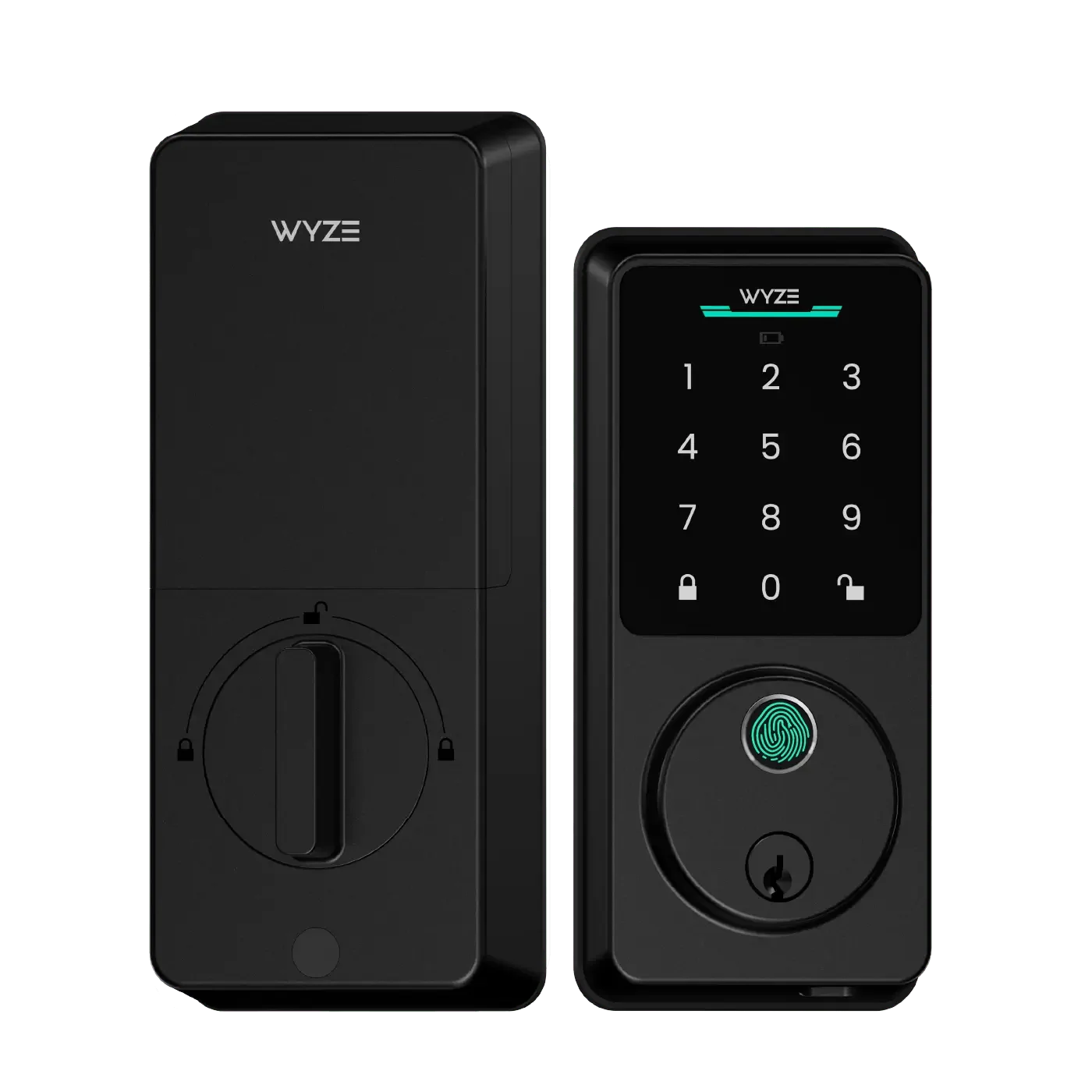
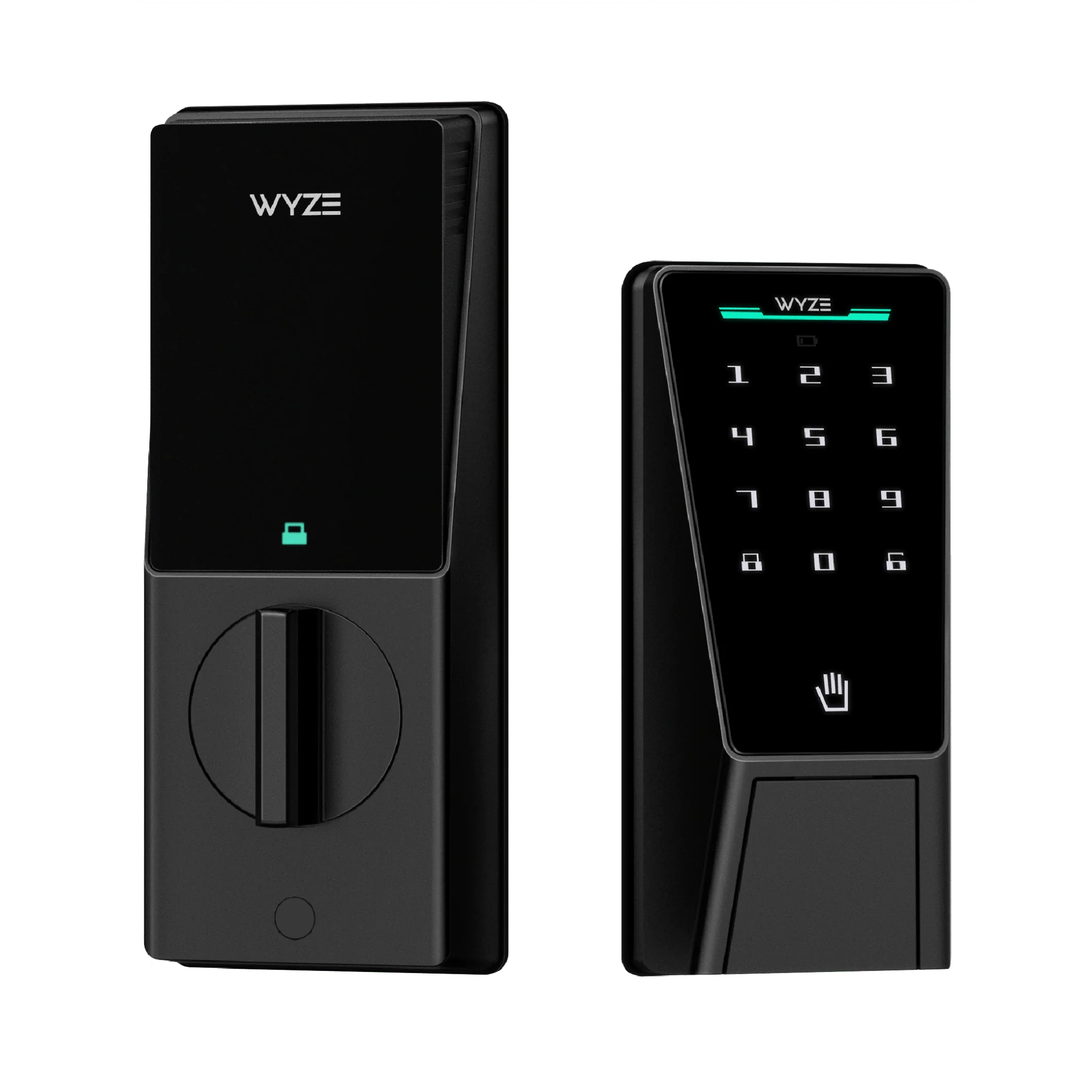
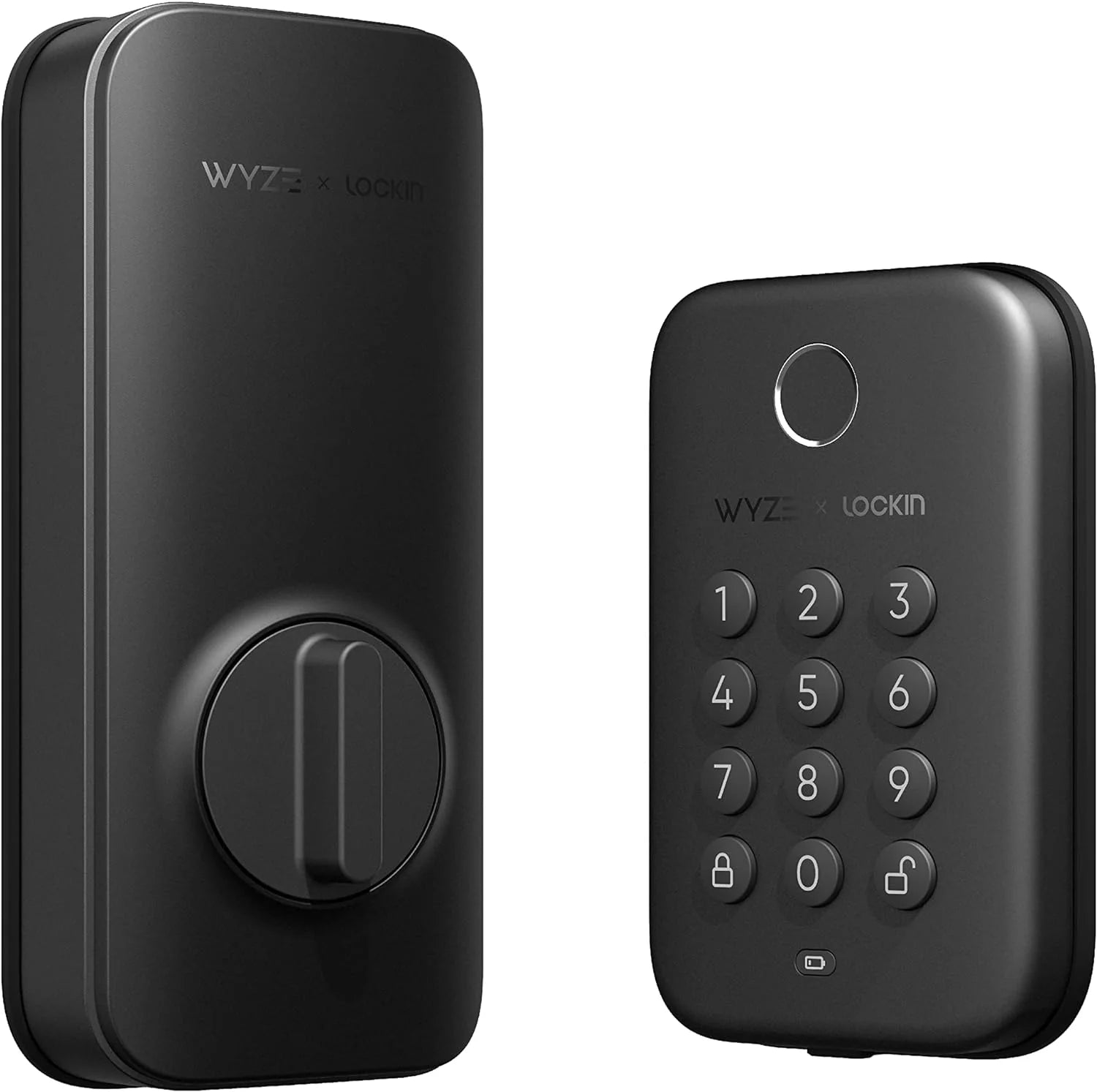
Some connected devices, like smart locks or cameras, may be located far from your router. While mesh nodes help, you can further improve their reliability by using Wyze accessories designed for specific use cases. For instance, the Wyze Lock Bolt v2 offers a strong, secure connection to your network, but its performance depends on consistent Wi-Fi. If you place a mesh node near your front door or garage, you’ll ensure the lock communicates reliably with your phone and automations. Similarly, outdoor cameras benefit from a nearby node to maintain video streaming without buffering.
Use Wired Backhaul for Critical Areas
If your Wyze Wi-Fi 6 Mesh Router supports wired backhaul (connecting nodes via Ethernet), use it for the highest performance. Hardwire one node to the main router using Cat6 cables, especially in areas where you need ultra-reliable connections for gaming consoles, PCs, or smart hubs. This frees up wireless bandwidth for other devices and reduces latency. Even if you can only wire one node, it significantly improves the overall mesh stability.
Update Firmware and Optimize Settings
Wyze regularly releases firmware updates that improve performance, fix bugs, and enhance security. Check the Wyze app for pending updates and install them. Also, adjust these settings for better range:
- Choose the right channel — In the router settings, switch to a less congested channel (use a Wi-Fi analyzer app to find the best one).
- Enable band steering — This lets the router automatically move devices between 2.4 GHz and 5 GHz bands for optimal speed and range.
- Adjust transmit power — Set it to “High” for maximum coverage, though this may slightly increase power consumption.
- Disable unused features — Turn off guest networks or IoT segregation if you don’t need them, as they can consume resources.
Consider a Dedicated Node for Outbuildings
If you have a detached garage, workshop, or backyard studio, a single mesh node might not reach that far. You can add an extra Wyze Wi-Fi 6 node (sold separately) to extend coverage outdoors. Place it inside the outbuilding, as close to the main house as possible, and ensure it’s within range of the nearest indoor node. This gives you reliable Wi-Fi for smart devices like cameras or speakers in those spaces.
Maintain Your Mesh Network Over Time
Wi-Fi performance can degrade as you add more devices. Periodically run a speed test in different rooms to identify slow spots. If you notice a particular area dropping out, consider moving a node or adding a new one. Also, clean the router vents to prevent overheating, which can throttle performance. The Wyze app provides network health metrics, so you can proactively address issues before they become problems.
Conclusion
Extending the range of your Wyze Wi-Fi 6 Mesh Router doesn’t require expensive equipment or technical expertise. By following placement best practices, reducing interference, and using accessories like a surge protector for stable power, you can achieve whole-home coverage that supports all your devices. For households with smart locks, cameras, and multiple users, these optimizations ensure a smooth, lag-free experience from the basement to the backyard.
Ready to take your home network to the next level? Explore the Wyze Surge Protector to protect and power your router setup, ensuring consistent performance even during electrical fluctuations. With the right combination of placement and accessories, you’ll enjoy fast, reliable Wi-Fi in every corner of your home.