How to Use Wyze Cameras for Pet Monitoring: Setup and Best Practices
By Wyzeussale | Published: 2026-06-12
Category: How-to Guides
Learn how to set up and optimize your Wyze camera for pet monitoring. From choosing the right camera to motion alerts and best practices, this guide ensures you never miss a moment with your furry friend.
Whether you're a new pet parent or a seasoned owner, keeping an eye on your furry companions when you're away can bring peace of mind. Wyze cameras offer an affordable, reliable solution for pet monitoring, with features like motion detection, two-way audio, and night vision. In this guide, we'll walk you through the setup process, share best practices, and show you how to make the most of your Wyze camera as a dedicated pet cam. Plus, we'll recommend a few accessories that enhance your monitoring experience.
Why Choose a Wyze Camera for Pet Monitoring?
Wyze cameras are known for their low price point and robust feature set, making them a top choice for smart home security—and pet monitoring is no exception. Here are a few reasons why Wyze cameras stand out for pet parents:
- Affordable cost: Wyze cameras start at under $40, well below dedicated pet cameras that can cost $100 or more.
- High-definition video: Most models offer 1080p HD video with clear color night vision, so you can see your pets even in low light.
- Two-way audio: Talk to your pets or soothe them with your voice from anywhere using the Wyze app.
- Motion and sound detection: Get alerts when your pet moves or barks, and review recorded events in the cloud or on a microSD card.
- Customizable zones: Set motion detection zones to focus on your pet's bed or feeding area and ignore other parts of the room.
Choosing the Right Wyze Camera for Your Pet
Wyze Cam v3
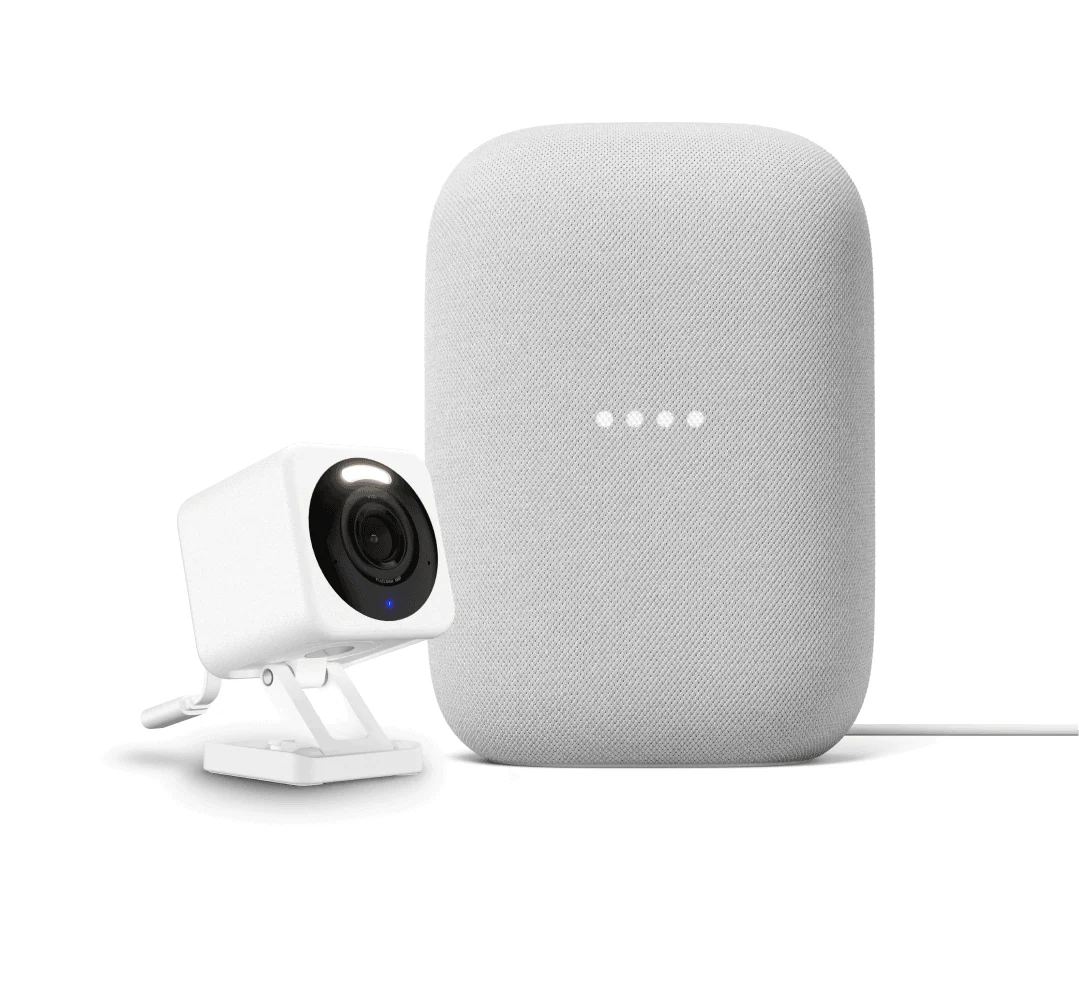
The Wyze Cam v3 is a versatile indoor/outdoor camera with color night vision and a weather-resistant design. It's perfect for monitoring pets in living rooms, bedrooms, or even outdoor enclosures. Its magnetic base allows flexible placement on a shelf or wall. For enhanced nighttime visibility, consider adding the Wyze Cam v3 Spotlight Kit to illuminate dark areas without disturbing your pet's sleep.
Wyze Duo Cam Battery Doorbell
If your pet spends time in the backyard or at a dog door, the Wyze Duo Cam Battery Doorbell offers a dual-camera view—one pointing at visitors and the other showing a wide-angle view of your doorstep. This can be mounted near a pet door to monitor comings and goings, while the battery-powered design eliminates the need for hardwiring.
Step-by-Step Setup Guide for Pet Monitoring
Step 1: Unbox and Position Your Camera
Unbox your Wyze camera and choose a location that offers a clear view of your pet's favorite spots—like their bed, food bowl, or play area. For indoor cameras, a high shelf or corner mount works best to avoid tampering. If you're using a Wyze Cam v3 outdoors for a dog run, ensure it's under an eave or use the included weather-resistant accessories.
Step 2: Download the Wyze App and Pair the Camera
Download the Wyze app from the App Store or Google Play. Create an account or log in, then tap "Add Device" and scan the QR code on the camera. Follow the in-app instructions to connect the camera to your Wi-Fi network (2.4 GHz recommended for best range and stability).
Step 3: Configure Motion Detection and Notifications
Once paired, navigate to the camera's settings and enable motion detection. Adjust the sensitivity slider to avoid false alerts from swaying curtains or passing cars. For pet monitoring, set a motion detection zone—for example, draw a zone around the pet's bed area. You can also enable sound detection to get alerts for barking or meowing. Review your notification preferences in the app's settings to filter alerts to only motion or sound events.
Step 4: Set Up Recording and Storage
Wyze cameras support continuous recording with a microSD card (up to 128GB) or cloud recording via Wyze Cam Plus subscription. For pet parents, a 32GB card stores several days of footage, perfect for reviewing your pet's behavior while you're at work. Insert the card into the camera slot and format it in the app under "Advanced Settings" > "Local Storage."
Step 5: Use Two-Way Audio and Siren
To soothe an anxious pet or discourage unwanted behavior (like chewing on furniture), use the two-way audio feature. Speak through the app to call your pet or play a pre-recorded message. The built-in siren can also be activated remotely to startle a pet that's getting into trouble, but use it sparingly to avoid causing stress.
Best Practices for Effective Pet Monitoring
Create a Pet-Friendly Environment
Before leaving, make sure your pet has access to water, food, and a comfortable resting area. Leave toys or interactive puzzles to keep them occupied. A camera with a wide field of view can help you see the entire room, so you can quickly check if they've tipped over their water bowl or are scratching at furniture.
Use Multiple Cameras for Larger Spaces
If your home has multiple floors or rooms your pet accesses, consider adding a second Wyze camera. For example, place one in the living room and another in the kitchen. You can view all cameras on one dashboard in the Wyze app. To extend the reach of a camera placed far from a power outlet, use the Wyze Cam USB Extension Cable - 20ft to position the camera exactly where you need it without worrying about outlet proximity.
Leverage Smart Home Integrations
Pair your Wyze pet camera with other Wyze devices for a smarter setup. For instance, if motion is detected in the kitchen, you can trigger a Wyze Plug to turn on a night light or a fan. This can help create a routine for your pet—like turning on a light when they go to their bed. For outdoor monitoring, combine the camera with a smart lock for secure pet doors. Check out our guide on creating custom smart home routines for more ideas.
Monitor Pet Health with Activity Tracking
Some Wyze cameras can track motion events over time, giving you a rough idea of your pet's activity levels. If you notice a sudden decrease in movement, it might be a sign of illness. For a more detailed health overview, consider using the Wyze app's activity logs alongside a dedicated pet activity tracker. You can also use the Wyze Removable Battery Pack to keep your camera running during power outages, ensuring continuous monitoring even when the grid goes down.
Troubleshooting Common Pet Monitoring Issues
False Alerts from Pets vs. Other Motion
If your Wyze camera triggers notifications when no pet is present, adjust the motion detection sensitivity or refine your motion zones. For example, if the camera picks up car headlights from a window, configure the zone to exclude that area. You can also enable "Pet Detection" if supported by your model (available with Wyze Cam Plus subscription), which filters alerts specifically for pets.
Poor Video Quality at Night
Wyze cameras use starlight sensors for color night vision, but if the area is too dark, the image may appear grainy. Add a small night light or use the Wyze Cam v3 Spotlight Kit for better illumination. Avoid placing the camera near bright lights that can cause glare.
Audio Echo or Feedback
Two-way audio can sometimes produce echo or feedback if the phone speaker is too close to the camera. Keep a distance of at least 10 feet between your phone and the camera when using talkback, or wear headphones to prevent audio loop.
Maximizing Your Wyze Pet Camera Investment
With these setup steps and best practices, your Wyze camera will become an indispensable tool for pet monitoring. Whether you're checking in during a vacation or just want to see what your dog does when you're at work, the Wyze ecosystem offers flexibility and reliability at an unbeatable price. Remember to regularly check your camera's firmware for updates, clean the lens, and ensure your Wi-Fi signal remains strong—especially if you add more cameras or devices to your home network.
Now that you know how to set up and optimize your Wyze camera for pet monitoring, it's time to put it into action. Explore the Wyze Duo Cam Battery Doorbell for a dual-view solution that covers your front door and pet entry point simultaneously. With its easy installation and smart features, you'll never miss a moment with your furry friend again.