How to Set Up and Use Wyze Palm Lock: A Step-by-Step Guide for Smart Home Security
By Wyzeussale | Published: 2026-06-01
Category: How-to Guides
Learn how to install and configure the Wyze Palm Lock with this detailed guide. From pairing to daily use, secure your home with palm recognition technology.
Welcome to the future of home security, where your palm is the key. The Wyze Palm Lock is a cutting-edge smart lock that uses palm vein recognition to grant access, offering a touchless, secure, and convenient alternative to traditional keys or keypads. In this step-by-step guide, we will walk you through setting up and using your Wyze Palm Lock, from unboxing to daily operation. Whether you are a tech enthusiast or a first-time smart lock user, this tutorial will help you maximize your home security with minimal hassle.
Why Choose a Palm Recognition Lock?
Traditional smart locks rely on codes, keys, or fingerprints, but palm vein scanning offers a higher level of security and convenience. The Wyze Palm Lock uses infrared light to map the unique vein patterns in your palm, which are nearly impossible to replicate. Wyze Palm Lock setup is straightforward, and once configured, you can unlock your door with a simple wave of your hand. This technology is ideal for families, busy professionals, and anyone who wants a seamless entry experience.
What’s in the Box
Before you begin, ensure your package includes the following items:
- Wyze Palm Lock unit (interior and exterior components)
- Mounting plate and screws
- Batteries (4 AA cells)
- User manual and quick-start guide
- Alignment tool for door preparation
If you are missing any components, contact Wyze support. For compatible door types and additional mounting accessories, you can also explore the Wyze Lock Bolt v2, which shares similar installation principles.
Step 1: Prepare Your Door
Most standard doors with a 2-1/8 inch bore hole and a 1-inch latch bore will fit the Wyze Palm Lock. Check your door’s thickness (1-3/8 to 2 inches is typical). If you have a non-standard door, consider using a Wyze Switch to control other smart home devices, but for this lock, proper door preparation is critical.
- Remove your existing deadbolt or lock.
- Clean the area and ensure the door edge is smooth.
- Use the provided alignment tool to mark any necessary adjustments.
- Install the latch and strike plate according to the manual.
Step 2: Install the Exterior and Interior Units
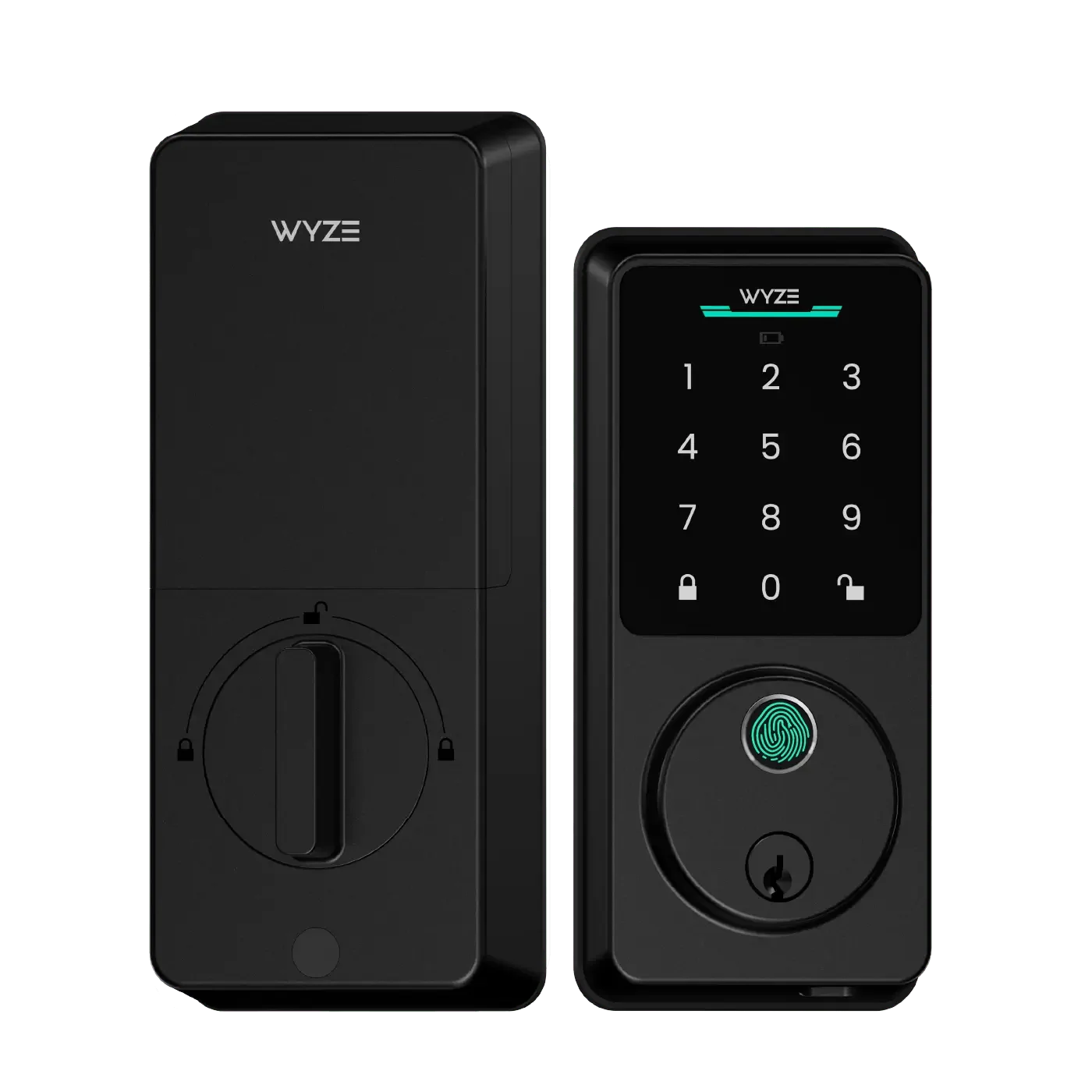
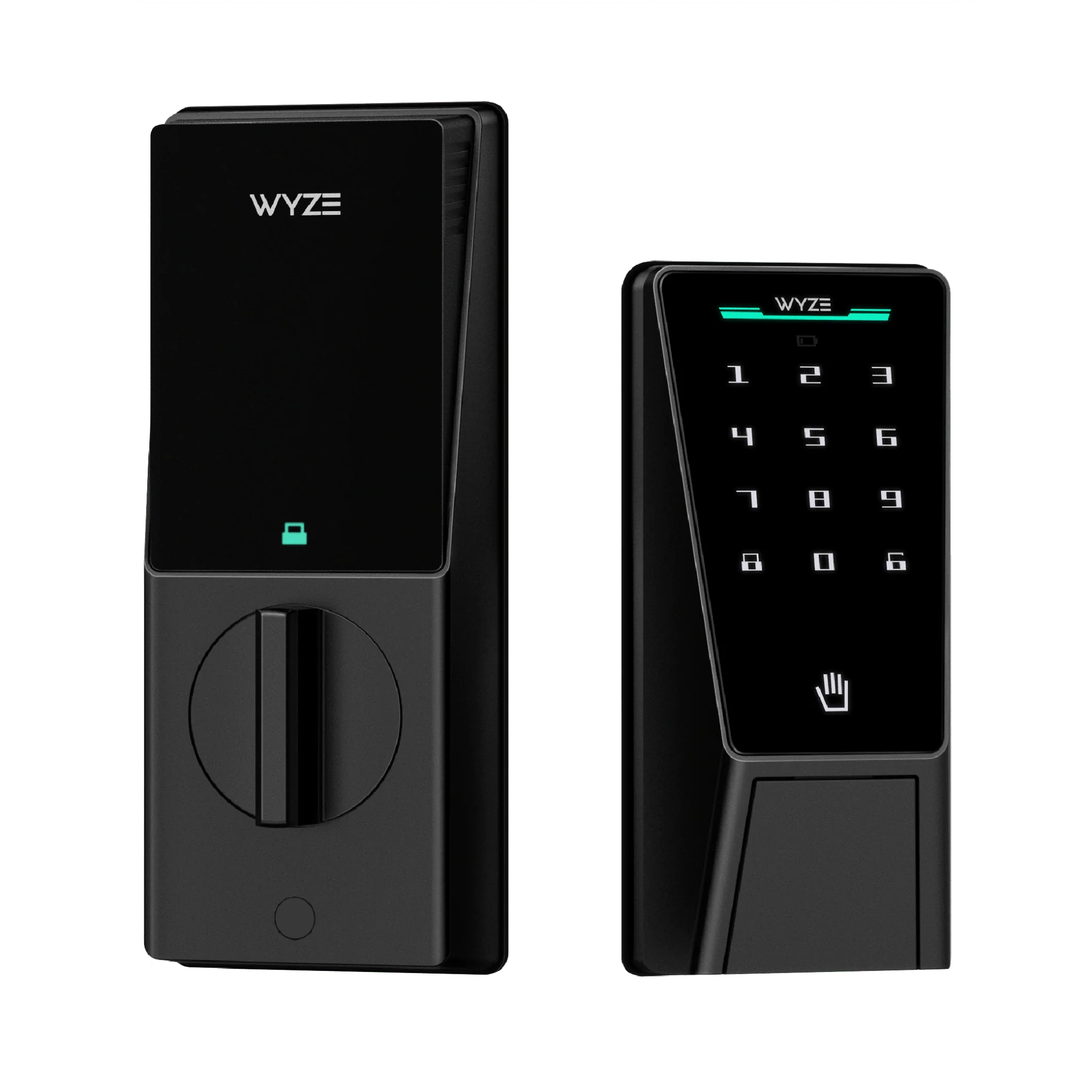
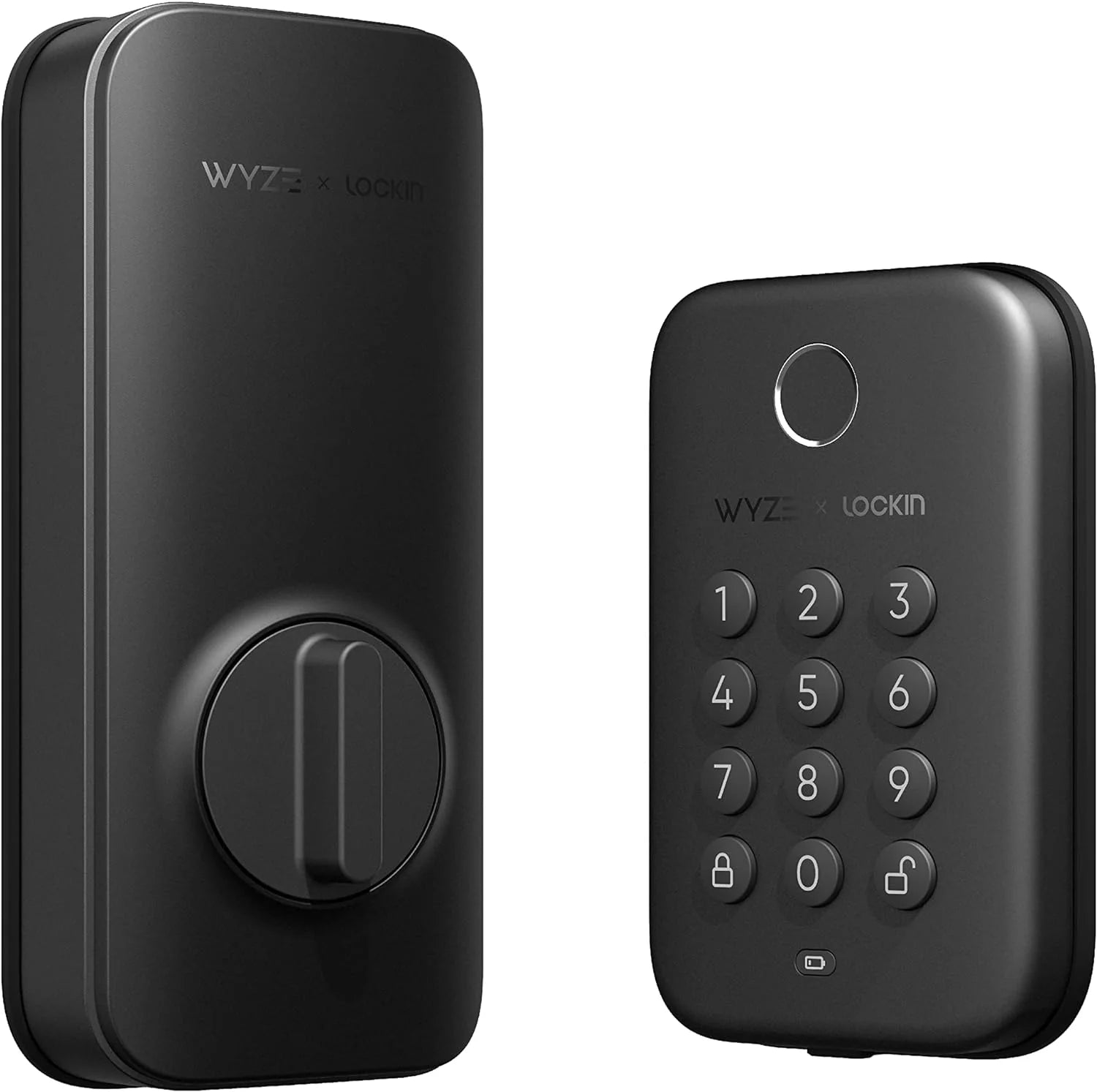
Now it is time to mount the hardware. The exterior unit houses the palm scanner and should be placed on the outside of your door. The interior unit contains the motor and battery compartment.
- Feed the cable from the exterior unit through the door’s bore hole.
- Attach the mounting plate to the interior side using screws.
- Snap the interior unit onto the mounting plate, ensuring the cable connects securely.
- Insert four AA batteries (included) into the battery compartment.
- Test the manual lock and unlock function before proceeding.
For a more comprehensive smart home security setup, pair your lock with a Wyze Video Doorbell v2 to see who is at your door before granting access.
Step 3: Download the Wyze App and Pair the Lock
The Wyze app is your command center. Download it from the App Store or Google Play, then create an account or log in.
- Tap the “+” icon in the app to add a new device.
- Select “Lock” and then “Wyze Palm Lock” from the list.
- Follow the on-screen instructions to put the lock into pairing mode (press and hold the interior button until the LED blinks blue).
- The app will scan and connect to your lock via Bluetooth. Confirm the connection.
- Name your lock (e.g., “Front Door”) and assign it to a room.
Once paired, the lock will automatically update its firmware if needed. This step is essential for optimal performance and security.
Step 4: Set Up Palm Recognition
This is the heart of the palm recognition lock experience. The Wyze Palm Lock uses a high-resolution infrared sensor to capture your palm vein pattern. Here is how to enroll your palm:
- In the Wyze app, go to the lock settings and select “Manage Palm”.
- Tap “Add Palm” and hold your palm about 2 inches above the scanner, with your fingers slightly spread.
- The scanner will take multiple readings to create a 3D map of your veins. Keep your hand steady for about 3 seconds.
- Repeat this process for each family member. You can store up to 50 unique palm profiles.
For best results, enroll your palm in a well-lit area and avoid scanning with wet or dirty hands. If you have difficulty, try adjusting your hand angle.
Step 5: Configure Advanced Settings
The Wyze app offers several customization options to tailor the lock to your lifestyle:
- Auto-Lock: Set the door to lock automatically after 30 seconds to 5 minutes.
- One-Touch Lock: Lock the door by tapping the interior button.
- Guest Access: Create temporary palm profiles for visitors or service personnel.
- Notifications: Receive alerts for every lock/unlock event, low battery, or tampering.
These features enhance the smart lock guide experience, allowing you to monitor and control access remotely. For example, if you are at work and a guest arrives, you can unlock the door via the app.
Step 6: Daily Use and Troubleshooting
Using the Wyze Palm Lock daily is simple:
- Unlock: Wave your palm over the exterior scanner (within 2-3 inches). The lock will recognize your vein pattern and retract the latch within 2 seconds.
- Lock: Press the interior button or use the app. The lock also auto-locks if you enable that setting.
Common issues and solutions:
| Problem | Solution |
|---|---|
| Scanner does not recognize palm | Re-enroll your palm, ensure clean scanner lens, and avoid direct sunlight interference. |
| Lock does not respond | Replace batteries (4 AA) and check Bluetooth connection. Reset by removing and reinserting batteries. |
| Door does not latch properly | Check alignment of the strike plate and latch; adjust with a screwdriver if needed. |
For persistent problems, refer to the Wyze support website or community forums.
Integrating Your Wyze Palm Lock with Other Smart Home Devices
One of the greatest advantages of the Wyze ecosystem is how well devices work together. Pair your palm lock with a Wyze Cam Pan v3 to get a video feed of your entryway every time someone unlocks the door. You can also create routines—for example, when the lock unlocks, turn on the Wyze Bulb Cam + Accessory Bulbs to light up the hallway. This integration turns your Wyze Palm Lock setup into a fully automated security system.
Security Tips for Your Palm Lock
To keep your home secure, follow these best practices:
- Regularly update the lock’s firmware via the app.
- Do not share your palm enrollment with others—each palm is unique.
- Use the Wyze Security Yard Sign to deter intruders.
- Monitor the lock’s battery level; replace batteries at 20% capacity.
Conclusion
The Wyze Palm Lock is a game-changer in home security, combining biometric precision with smart home convenience. By following this Wyze lock tutorial, you have learned how to install, configure, and use your palm recognition lock effectively. Whether you are upgrading from a traditional lock or adding to an existing smart home, this device offers unmatched ease and protection. Start your journey today and experience the future of keyless entry.
Ready to upgrade your home security? Explore the Wyze Lock Bolt v2, another excellent addition to your smart lock collection, and enjoy seamless access control for every door in your home.